

📘 Introduction

dbt projects contain a lot of useful context: models, sources, tests, macros, lineage, compiled SQL, and project configuration. Claude Desktop becomes much more useful when it can understand that context directly instead of only reading copied snippets.

In this tutorial, you will learn how to connect Claude Desktop to your local dbt project with MCP. MCP, short for Model Context Protocol, lets Claude Desktop connect to local tools and project metadata in a structured way.

We will use the official dbt MCP server from dbt Labs. The goal is to let Claude inspect your dbt project, answer project questions, and run safe dbt CLI commands when you allow it.

💡 What are we implementing?

We will set up this local workflow:

Claude Desktop -> dbt MCP server -> your local dbt project

The dbt MCP server can expose useful dbt capabilities to Claude Desktop, including project metadata, model details, lineage, and dbt CLI commands such as dbt parse, dbt compile, dbt test, and dbt build.

For this beginner setup, we will focus on a local dbt project. That means you already have a folder with a dbt_project.yml file and a working dbt executable.

✅ Prerequisites

Before we start, you should have:

☑️ Claude Desktop installed
☑️ A local dbt project with a dbt_project.yml file
☑️ dbt Core or dbt Fusion available on your machine
☑️ Python and terminal access
☑️ Permission to edit Claude Desktop settings

🔍1️⃣ Find your dbt project path

Open a terminal and go to your dbt project folder. It should contain a dbt_project.yml file.

On macOS or Linux, print the current folder:

pwd

On Windows PowerShell, use:

Get-Location

Copy the full path. We will use it as DBT_PROJECT_DIR in Claude Desktop.

🔧2️⃣ Find your dbt executable

Next, find the path to your dbt executable.

On macOS or Linux, run:

which dbt

On Windows PowerShell, run:

where dbt

Copy the full path. We will use it as DBT_PATH in Claude Desktop.

📦3️⃣ Install package

The official dbt MCP local setup uses uvx to run dbt-mcp. If you already have uvx, check it with:

uvx --version

If the command is missing, install uv by following the official Astral installation instructions for your operating system. After installation, restart your terminal and check uvx --version again.

You do not need to clone the dbt-mcp repository for this tutorial. The local setup can run the official package with uvx dbt-mcp.

CTA Image

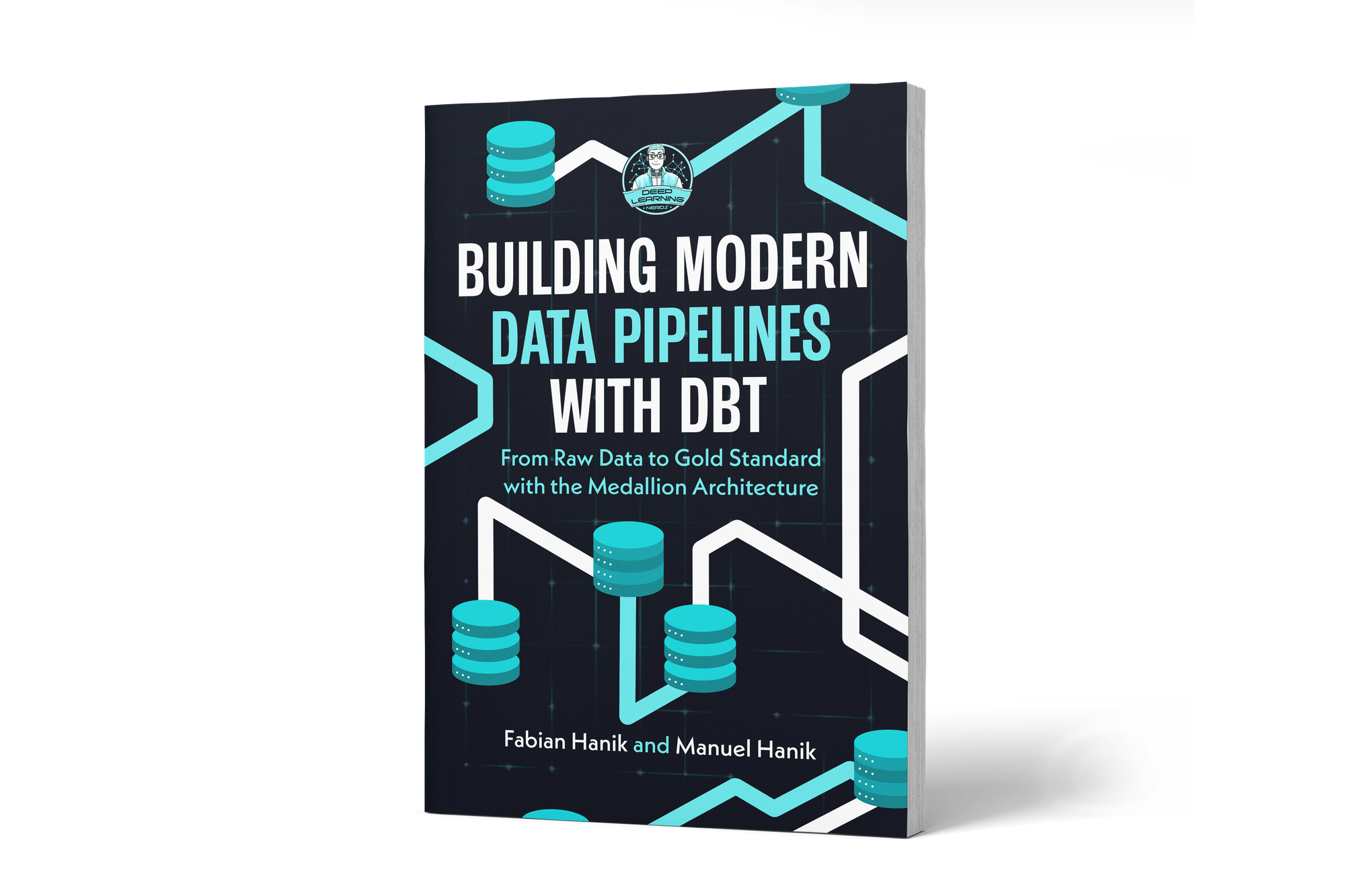
If you’d like to dive deeper into dbt (data build tool), our book Building Modern Data Pipelines with dbt: From Raw Data to Gold Standard with the Medallion Architecture provides a hands-on guide to designing modern data pipelines. It covers dbt’s core concepts and best practices, including building Bronze, Silver, and Gold layers with the Medallion Architecture. It also serves as a hands-on study guide for the dbt Analytics Engineering Certification.

View on Amazon

In the Academy section, we continue by configuring Claude Desktop, restarting the app, testing the dbt tools, and keeping dbt command access safe.

You can view this post with the tier: Academy Membership

Join academy now to read the post and get access to the full library of premium posts for academy members only.

Join Academy Already have an account? Sign In