
📘 Introduction

n8n is a powerful automation platform that gives you the freedom to build workflows, integrate apps, and create AI-powered automations without writing any code. Running n8n locally with Docker Desktop provides a fast, clean, and reliable setup that isolates your environment while keeping your system clutter-free.

With Docker Desktop, everything runs predictably across Windows, macOS, and Linux, making it the ideal choice for local development and experimentation.
This guide walks you through the complete process of installing and running n8n on Docker Desktop, helping you get up and running in just a few minutes.

💡 Why Install n8n with Docker?

Docker Desktop provides a full containerized environment that bundles n8n and all its dependencies into a single, portable package. You don’t need to install Node.js, databases, or any supporting tools — Docker handles everything behind the scenes.

Running n8n as a container also means you can easily start, stop, update, or delete the instance without affecting your workflows, since all data is stored persistently outside the container. With Docker Desktop, you get a future-proof and reproducible setup that works consistently across any machine.

✅ Prerequisites

Before starting, make sure you have the following:

🐳 ☑️ Docker Desktop installed

📁1️⃣ Create a Volume

💡
Docker Desktop allows you to define persistent volumes visually, without writing any configuration.

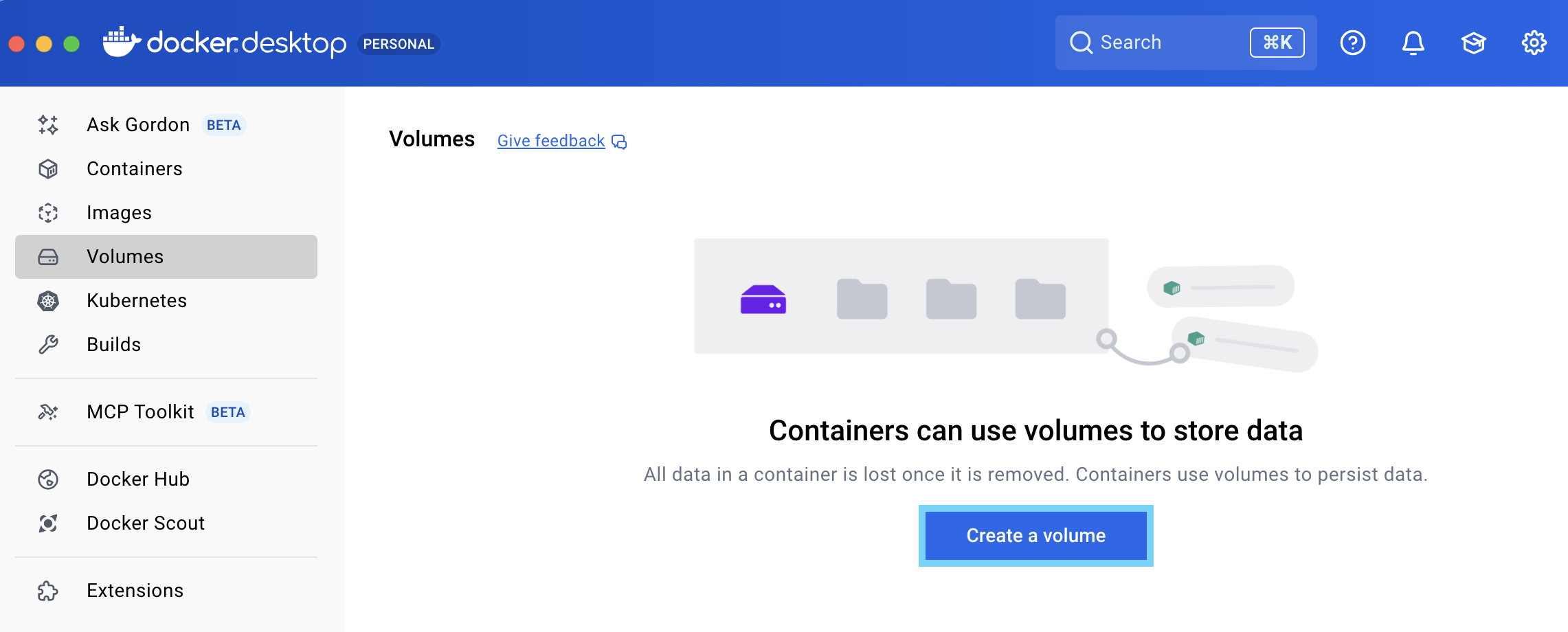
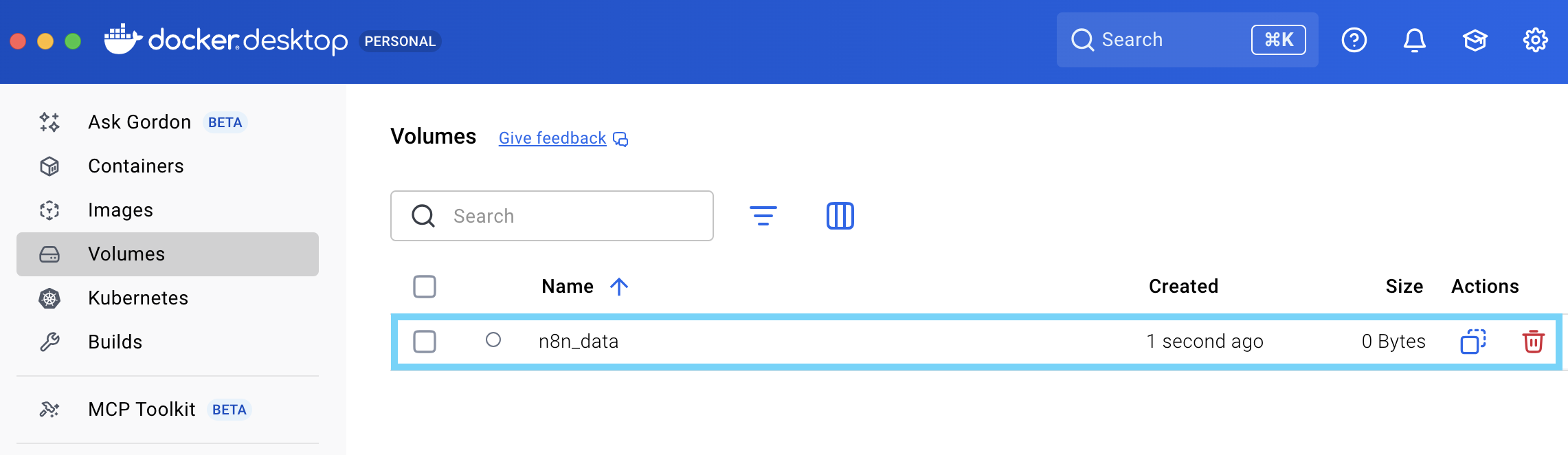
First, open Docker Desktop. Then navigate to the Volumes tab and click Create a volume.

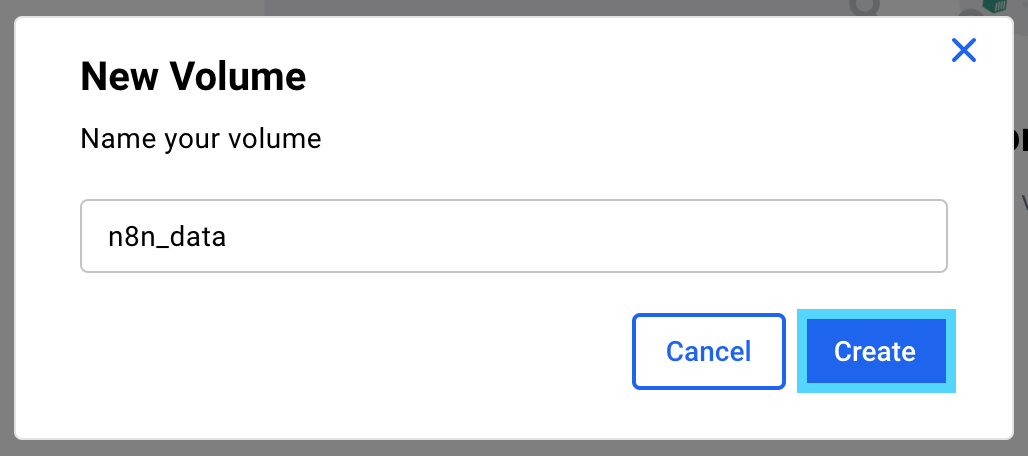
Name the volume n8n_data and click Create.

You will now see the volume listed.

💡
This volume will store all your n8n workflows, credentials, and settings so they remain safe even when updating or removing the container.

🖼️2️⃣ Download the n8n Image

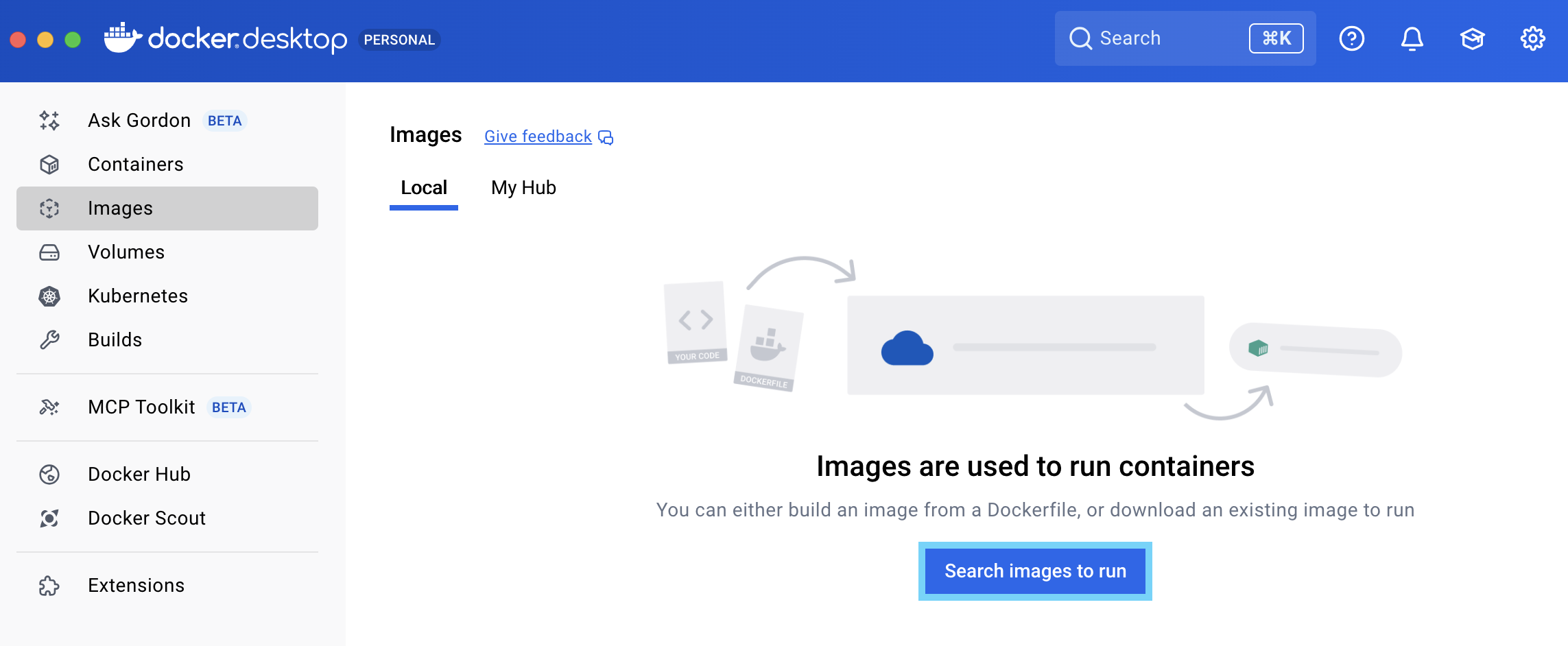
Navigate to the Images tab and click Search images to run.

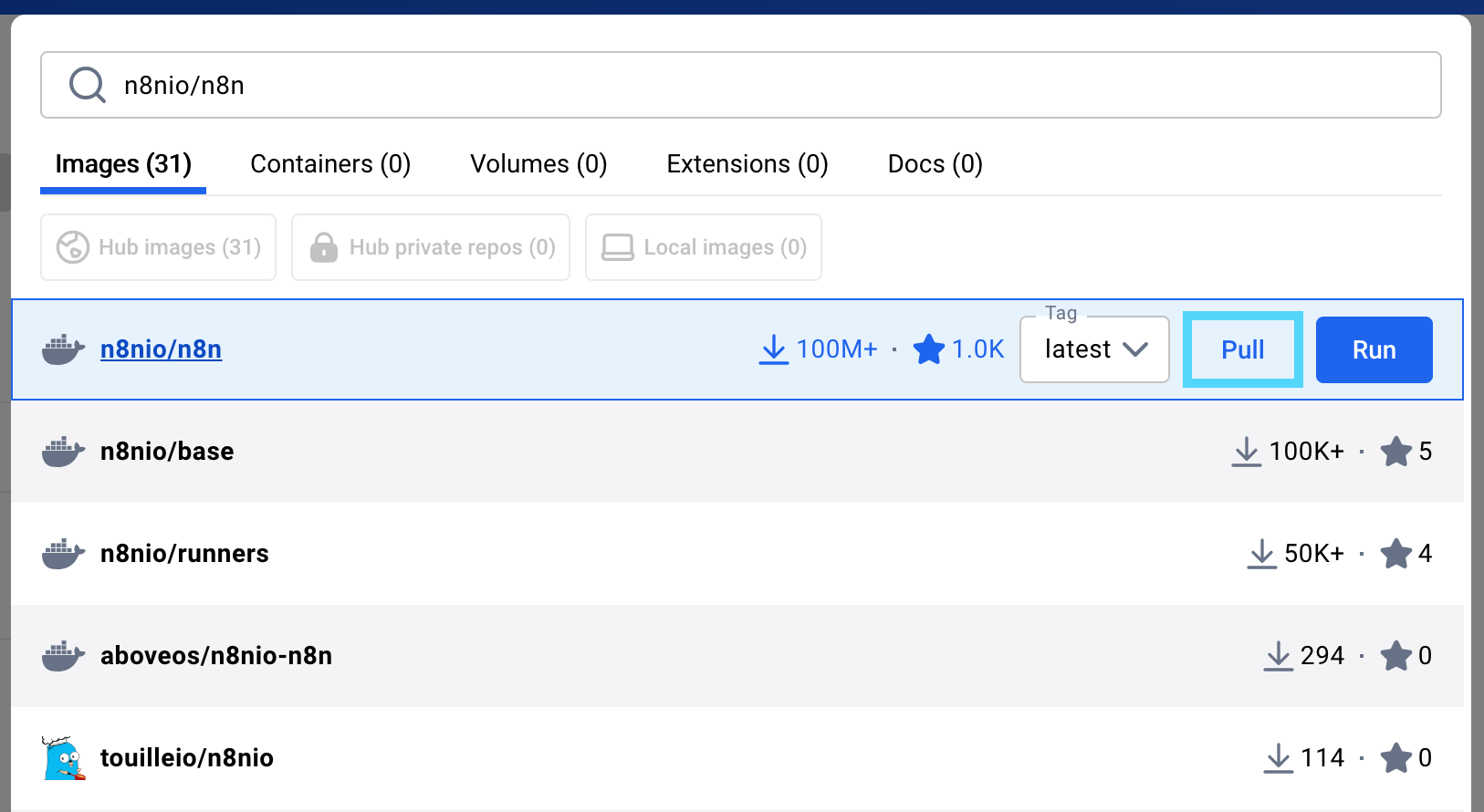
In the search bar, enter n8nio/n8n. Then click Pull to download the latest n8n image.

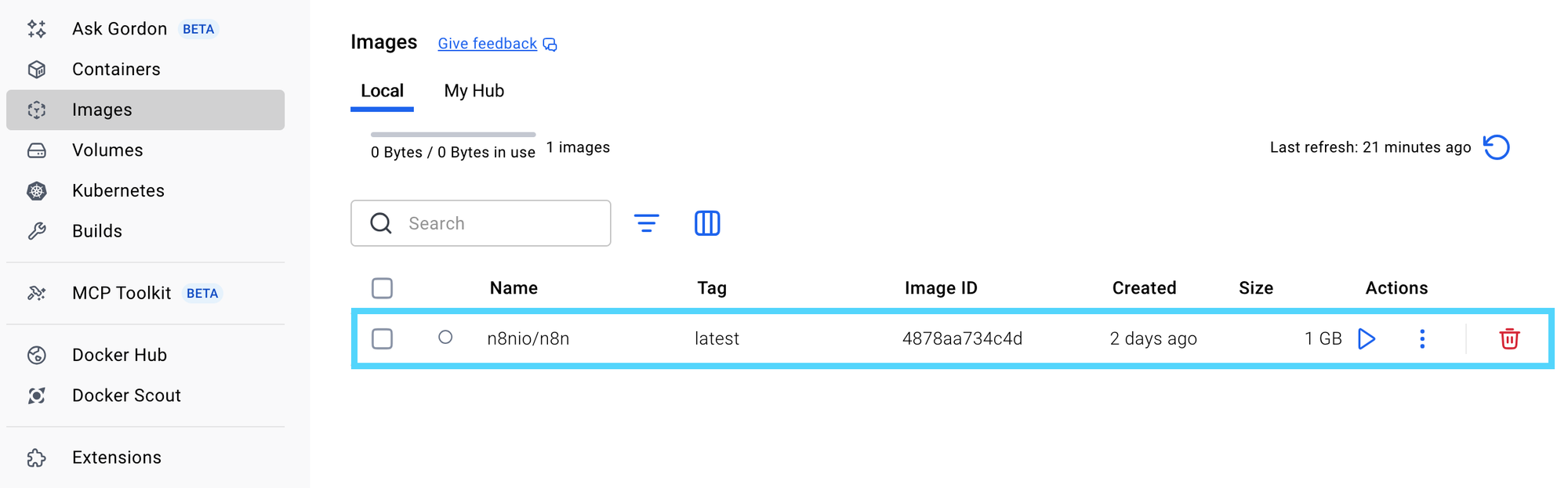
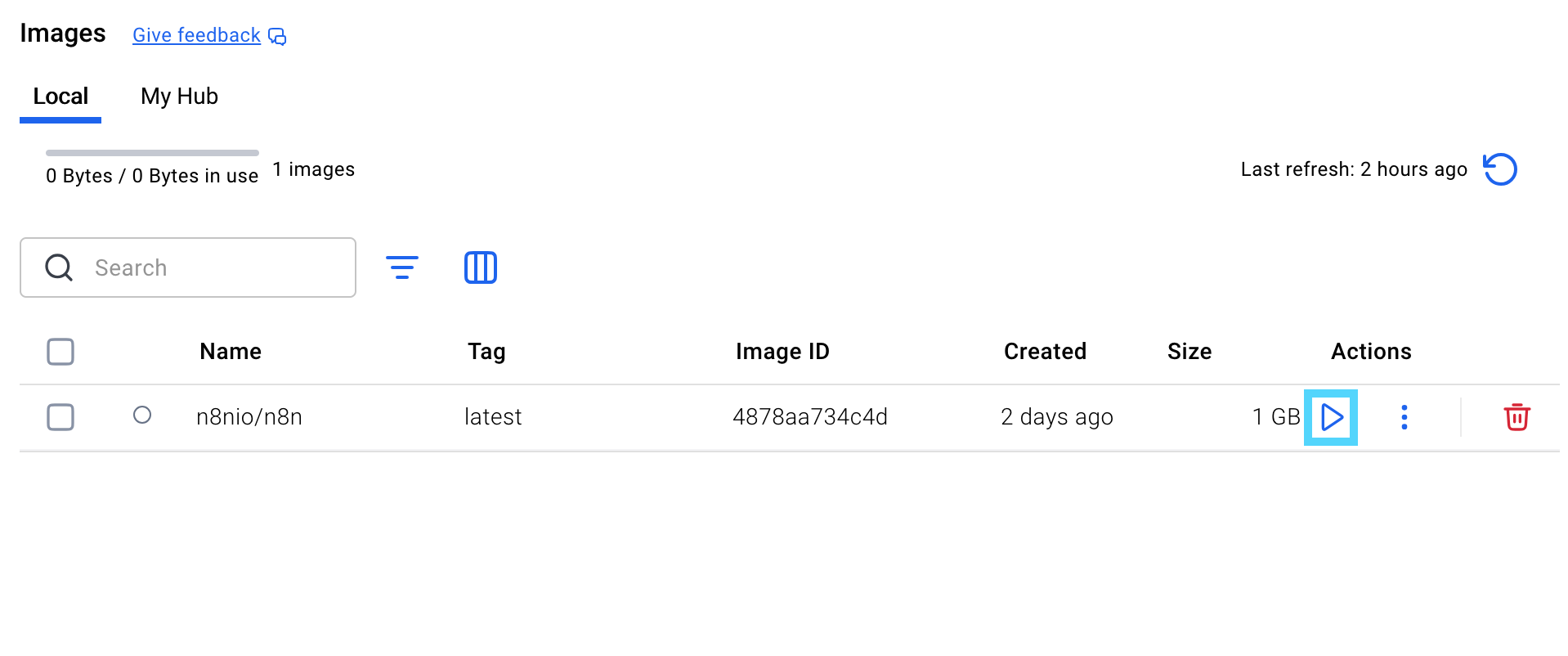
Once the download is complete, the image will appear under Local.

⚙️3️⃣ Configure the Container Settings

Before launching n8n, configure the container settings by clicking the Run button.

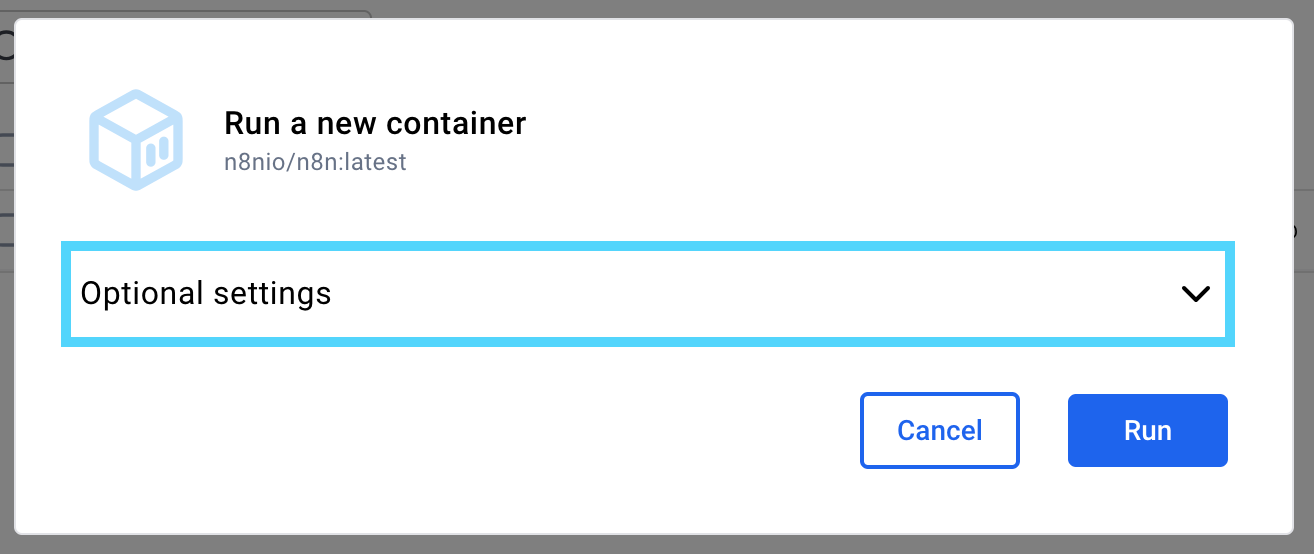
Next, select Optional settings.

Name the container n8n, then apply the following configuration settings:

  • Ports
    • Host Port: 5678
  • Volumes
    • Host path: n8n_data
    • Container path: /home/node/.n8n

Besides, set the following environment variables:

You can view this post with the tier: Academy Membership

Join academy now to read the post and get access to the full library of premium posts for academy members only.

Join Academy Already have an account? Sign In